Authorization Steps
1. Visit Hyperliquid and complete wallet creation;
2. Transfer funds to Hyperliquid before creating the API;
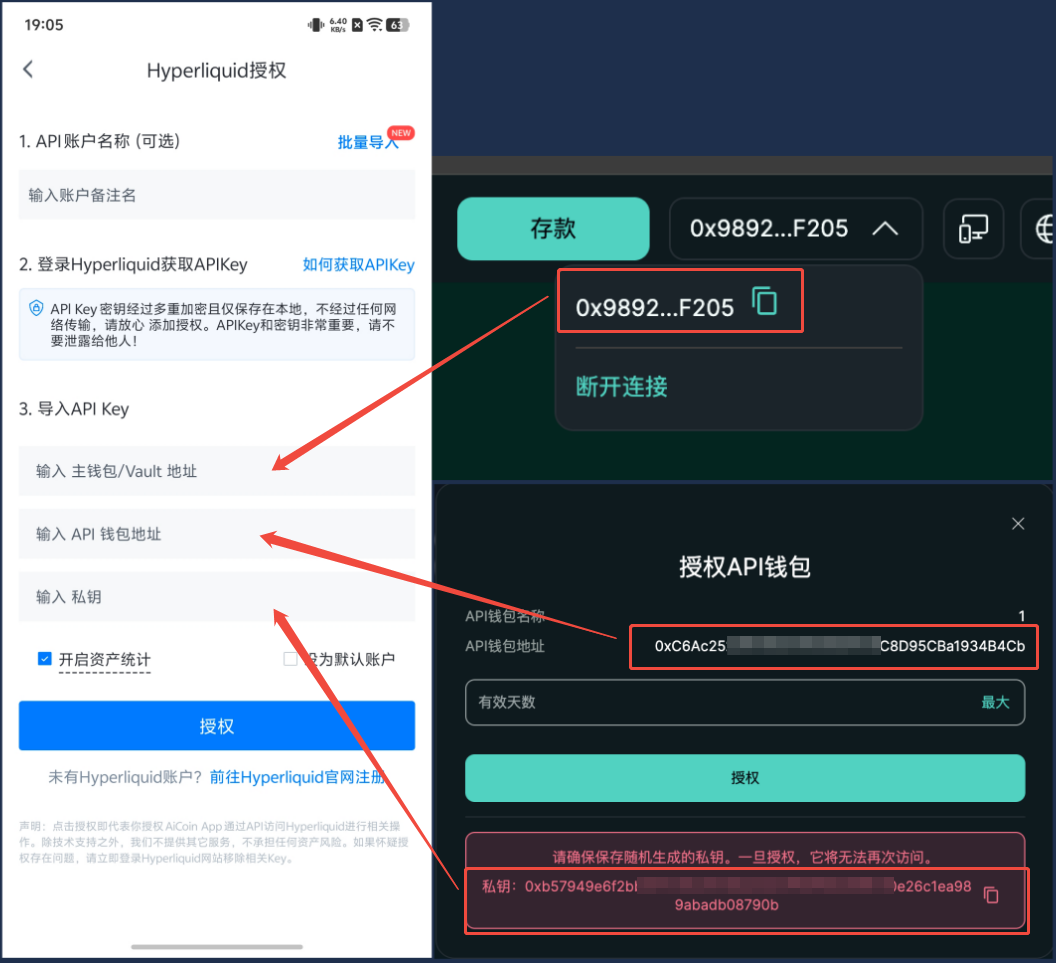
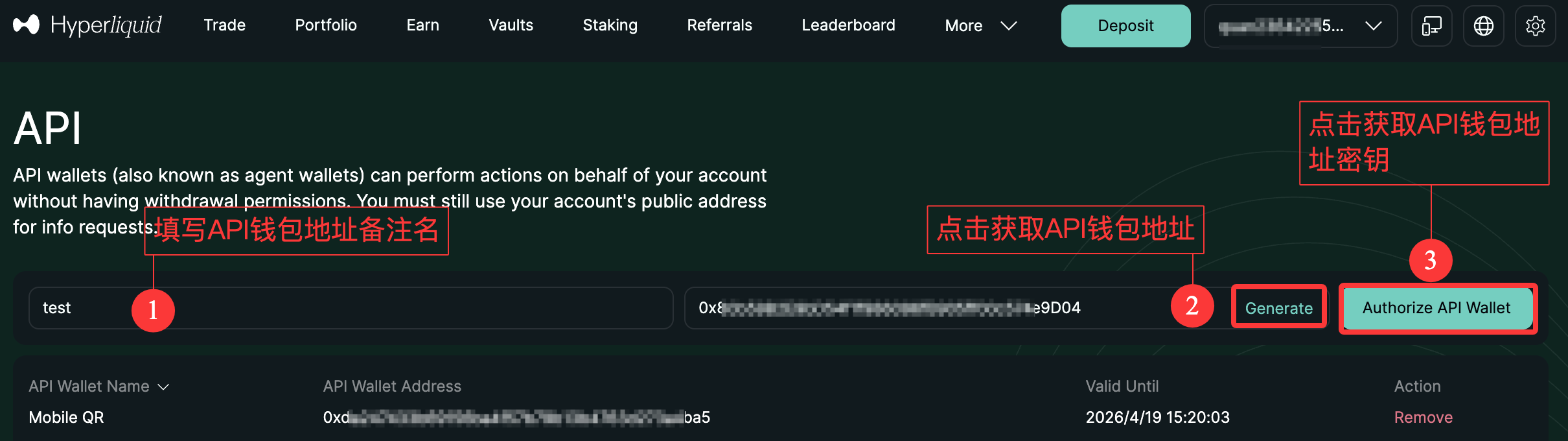
3. Click [More] to open the [API] interface → Click to generate API wallet address → Click [Authorize API Wallet] to generate [Private Key] → Copy and save [Wallet Address, Private Key];
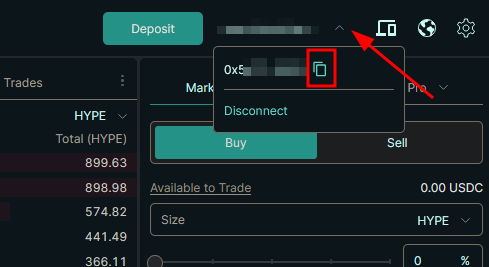
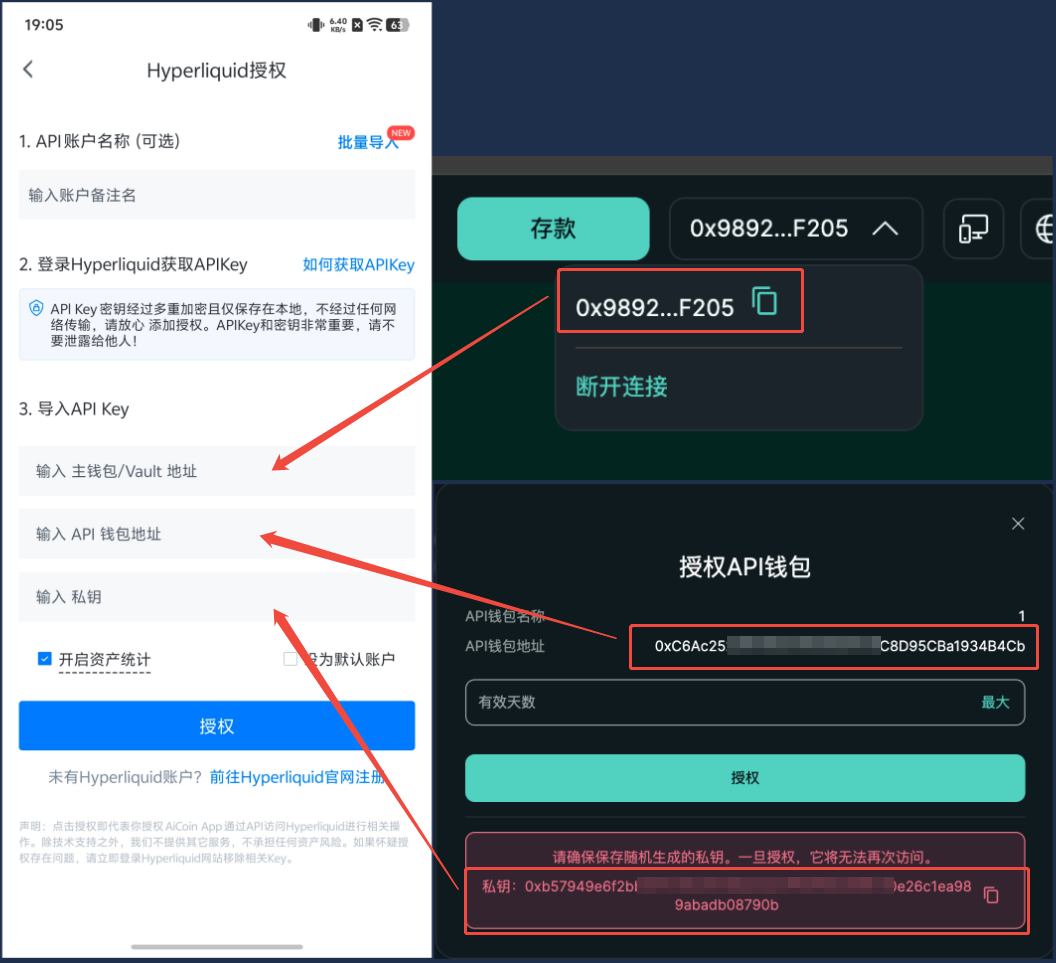
4. After authorizing the API key, click the [Deposit] button in the top right corner to obtain the [Main Wallet Address];
5. Obtain "Main Wallet Address, API Wallet Address, API Wallet Private Key", copy them into the corresponding input boxes on the left and click to add authorization.
6. The first time, you need to execute a signature authorization through the wallet to activate the trading service.
The following is a detailed tutorial for Hyperliquid authorization trading:
Before starting, if you do not have a Hyperliquid wallet account, you can join Hyperliquid using the invitation code (AICOIN88) to receive a 4% fee rebate.
Register Hyperliquid Account and Get 4% Rebate >>
Download AiCoin official version: https://www.aicoin.com/download
If you want to connect your Hyperliquid account to AiCoin for binding authorization, you need to apply for a proxy wallet API key on the Hyperliquid official website.
Create Hyperliquid Proxy Wallet and Keys
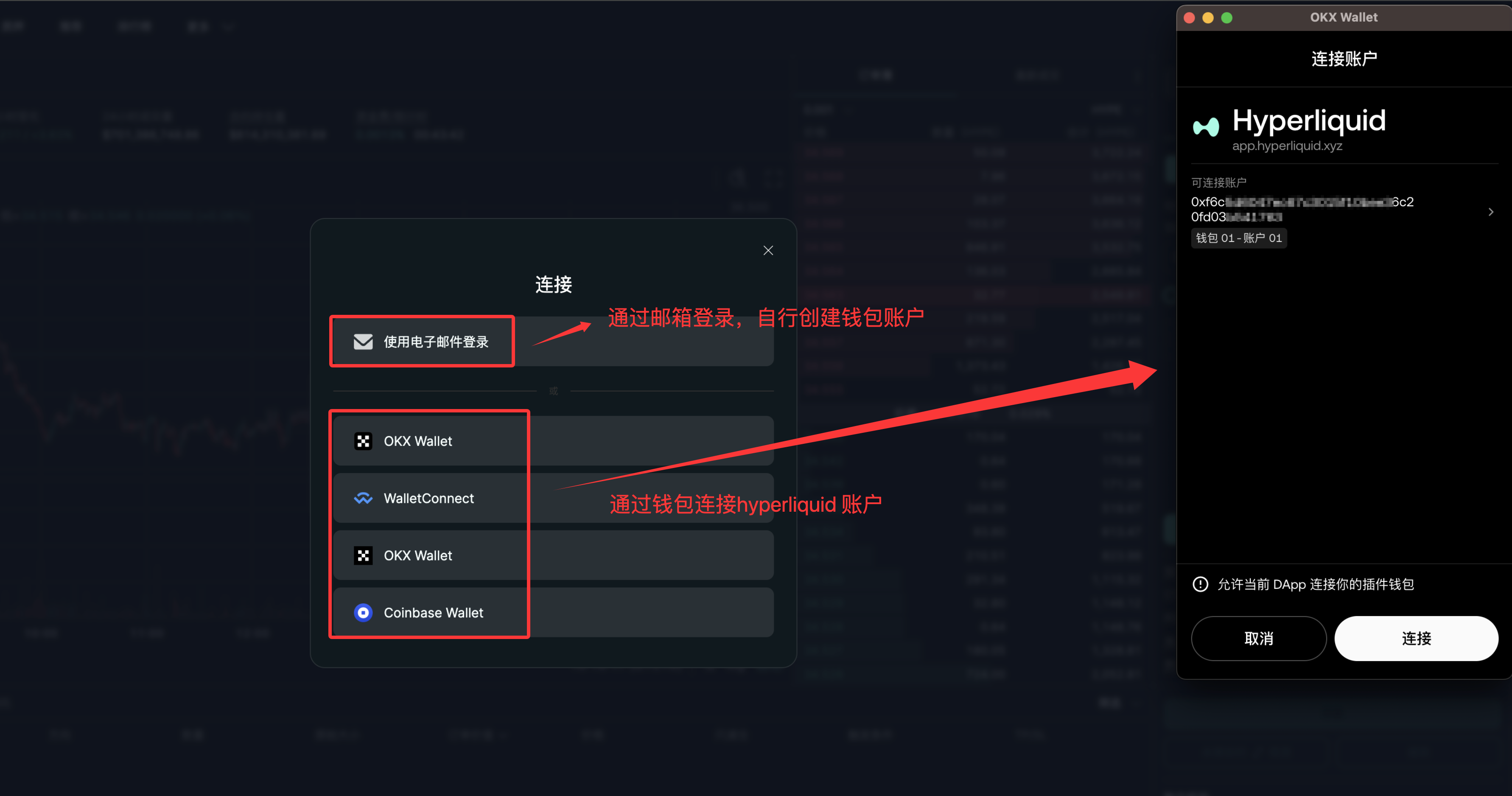
1. Visit Hyperliquid and complete wallet connection or create a wallet account by yourself; you can directly click this link to access the official website page.
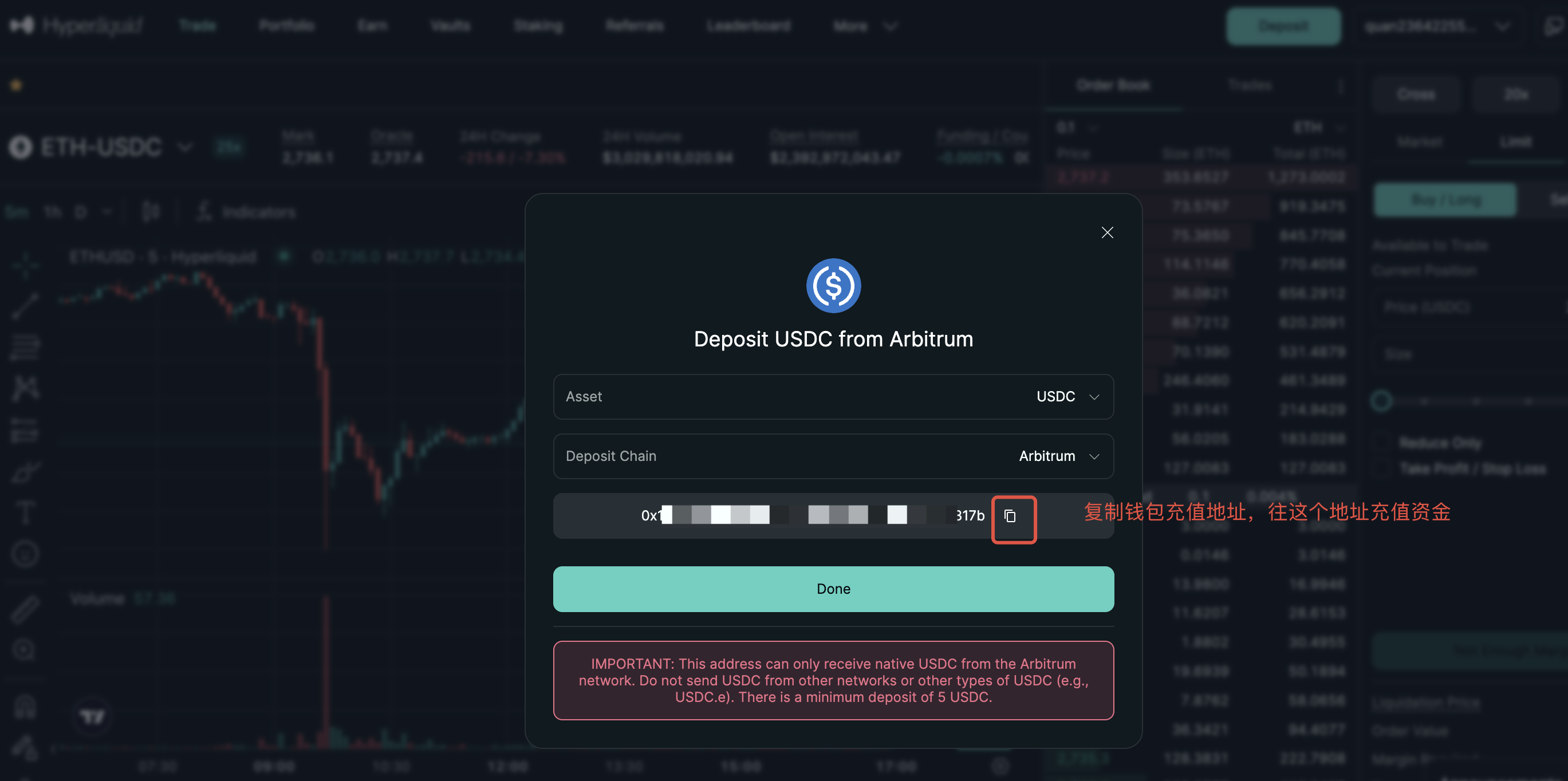
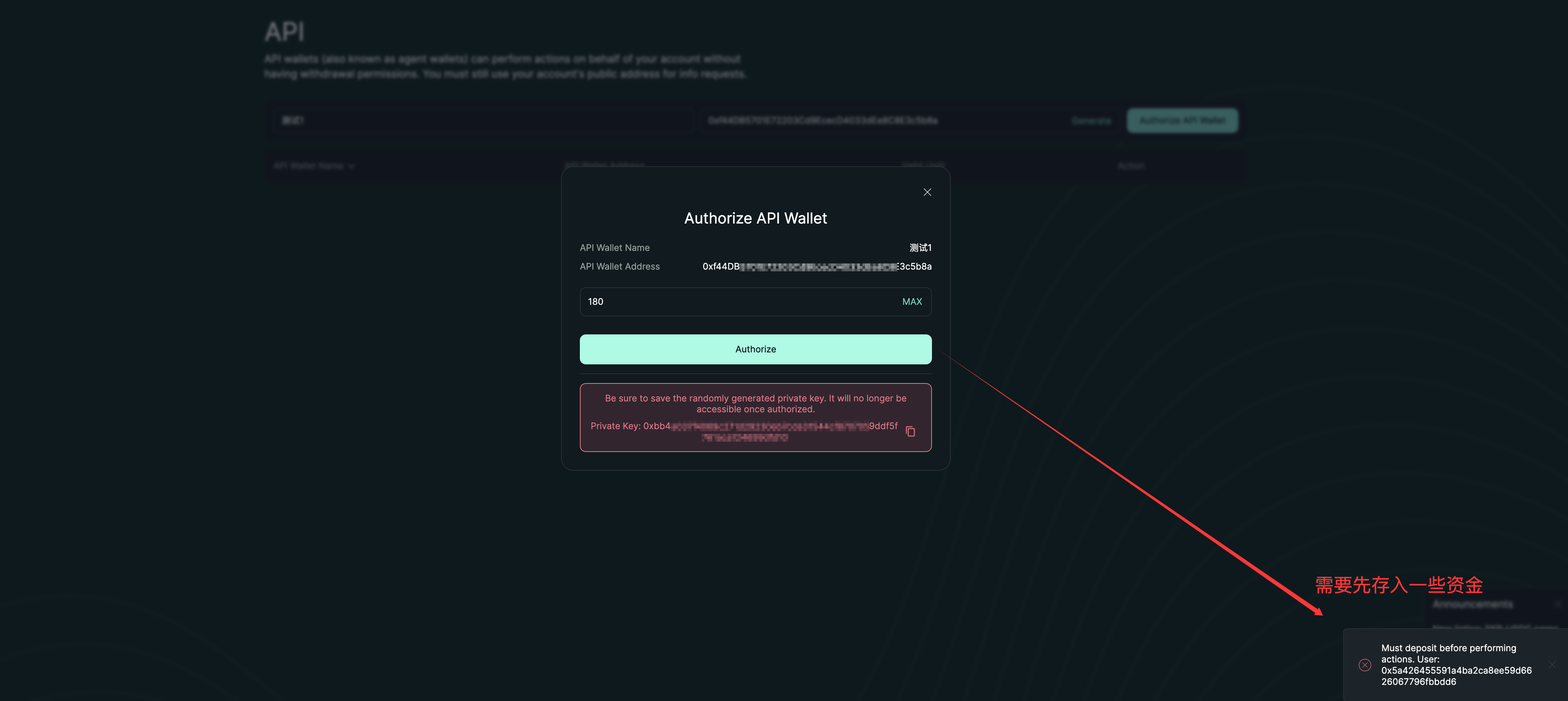
2. Hyperliquid requires you to deposit funds first before creating the API key, so please make sure to complete this step first. After logging into your wallet, click the “Deposit” button in the top right corner to obtain the recharge address to deposit funds.
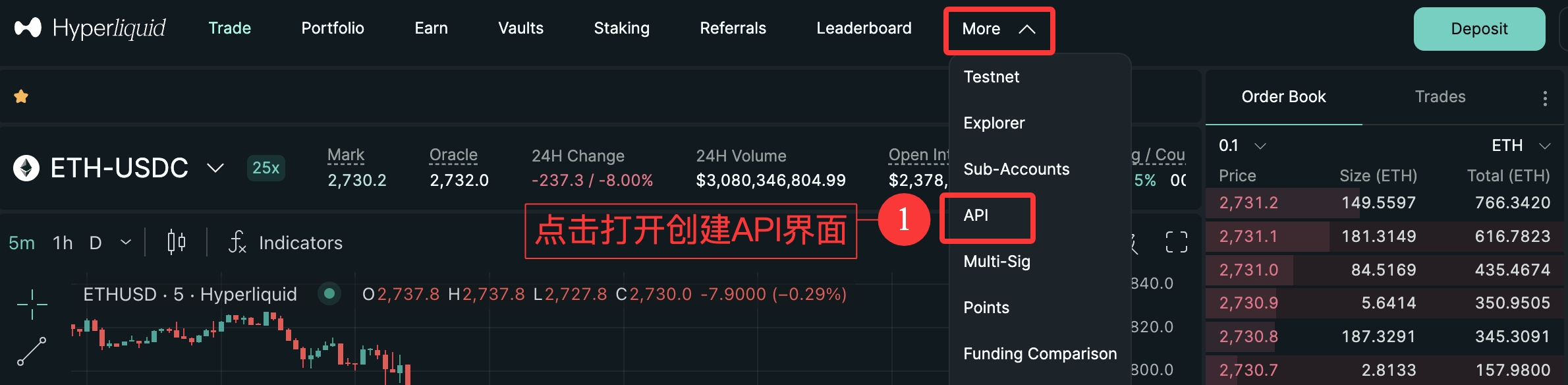
3. After connecting to the wallet, click the “More” button at the top, then select “API” from the dropdown menu to enter the API key page.
4. “Generate API Wallet”, create the key.
① Name your key, then click the “Generate” button to start the generation process.
② Click the “Generate API Wallet” button.
③ Choose the validity period of your key (up to 180 days).
④ Please keep your private key safe; you can click the highlighted button in the image below to copy and back it up (do not disclose it to others).
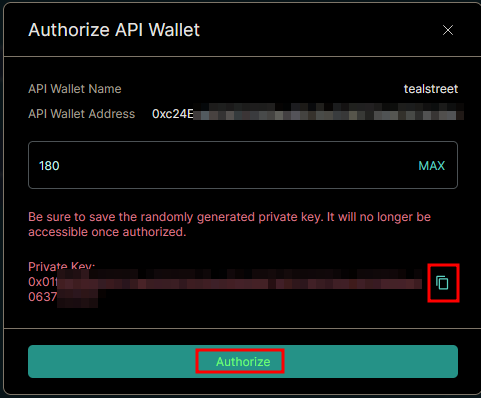
5. Once completed, click the “Authorize” button and use your wallet to sign the transaction.
You need to deposit funds first to complete the creation of the API key. If you have not deposited funds, you will see a window as shown below.
After authorizing the API key, click the dropdown menu near the deposit button in the top right corner, next to the connected wallet; this is your main account address, please keep it safe.
Connect Hyperliquid to Add Authorization
Now that we have the required Main Wallet Address, Proxy Wallet Address, Proxy Wallet Key information, let’s return to AiCoin to continue the API connection process.
1. Open the APP client, and log into your AiCoin account.
2. Open the authorization interface, select the Hyperliquid platform, and click the [Authorize] button to bring up the authorization pop-up.
3. Fill in the authorization information.
① Name your authorization account.
② Fill in the information obtained when creating the API on the Hyperliquid API page in the corresponding fields of the authorization interface.
4. Click the [Add] button to authorize the API.
Please carefully check and do not confuse the API wallet address and the API key private key. If these fields are incorrectly filled in, your Hyperliquid exchange account will not be able to connect to AiCoin.
Perform Wallet Signature Authorization to Obtain Ordering Permission
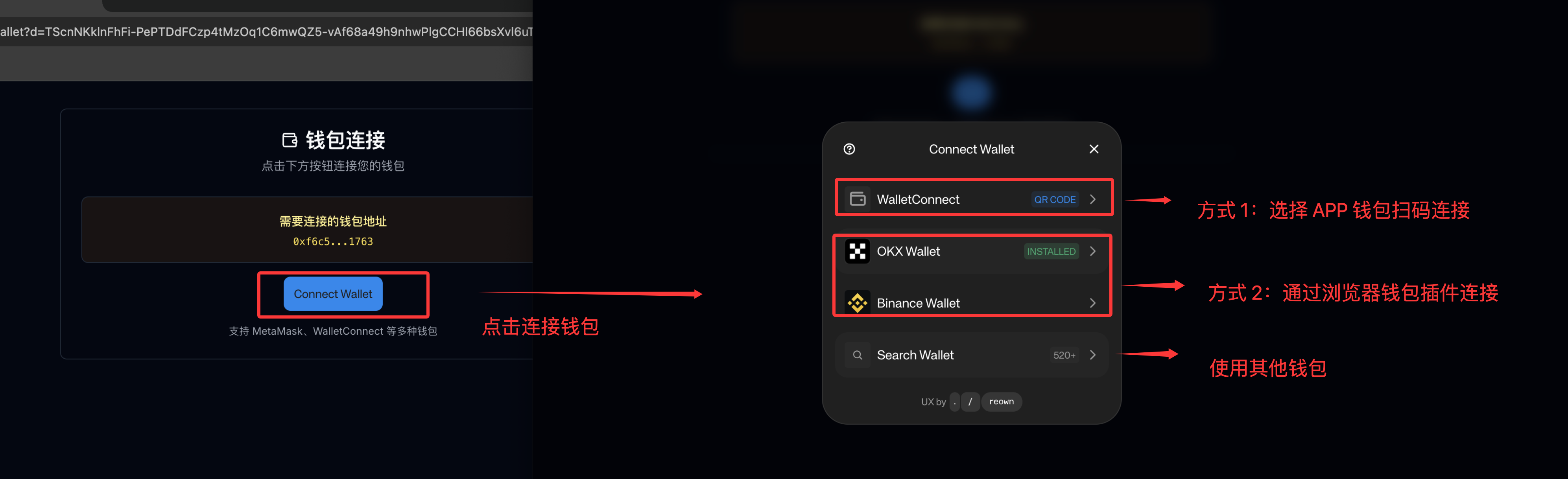
1. After completing the API authorization, a wallet signature activation pop-up will automatically appear. To provide better trading services, authorization is needed to activate trading. Please click the [Activate Button] to select the corresponding wallet plug-in for wallet activation, complete the signature authorization, and support connection through the mobile wallet APP via QR code or computer wallet plug-in.
2. Complete the final authorization via wallet signature request.
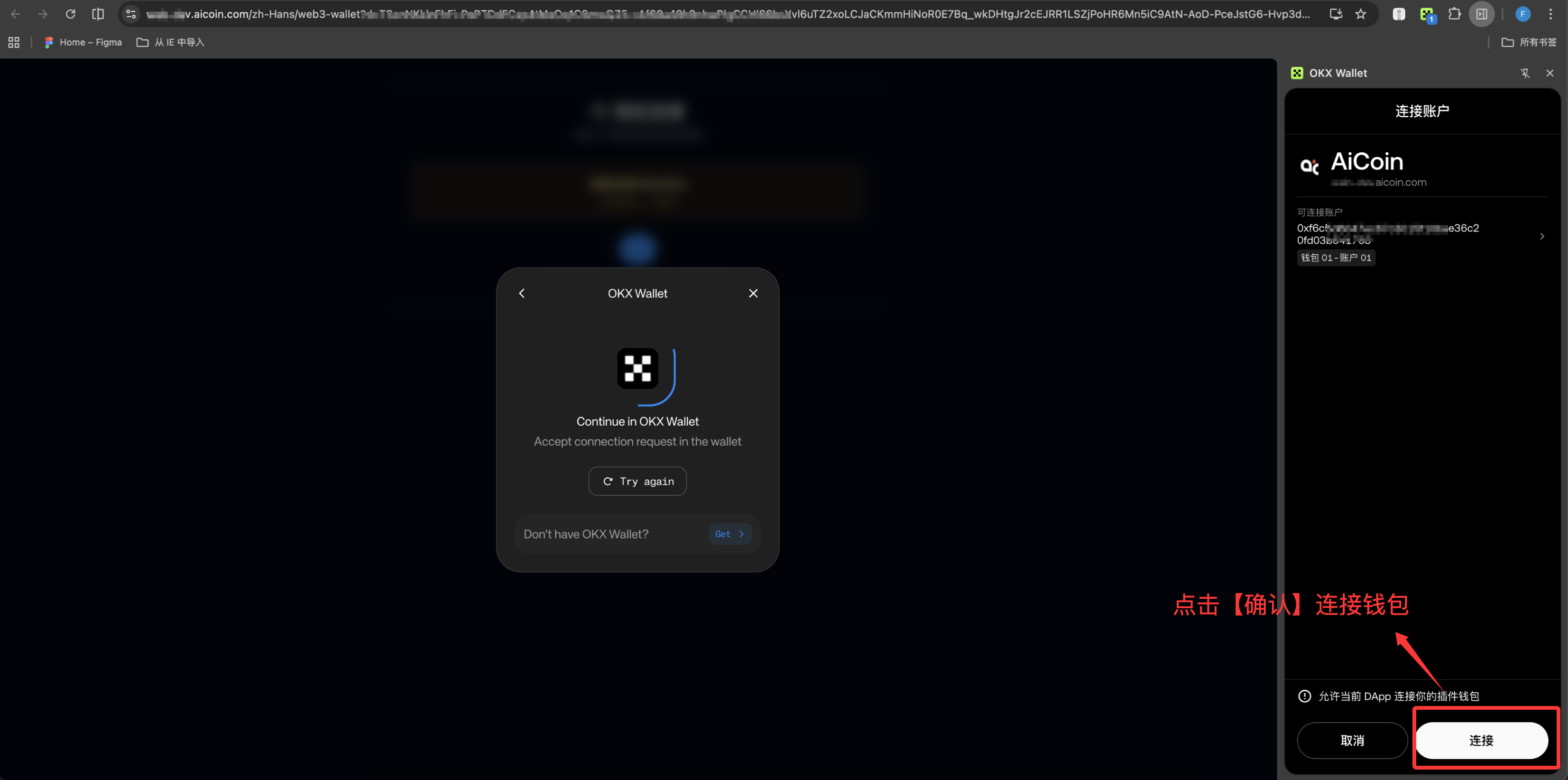
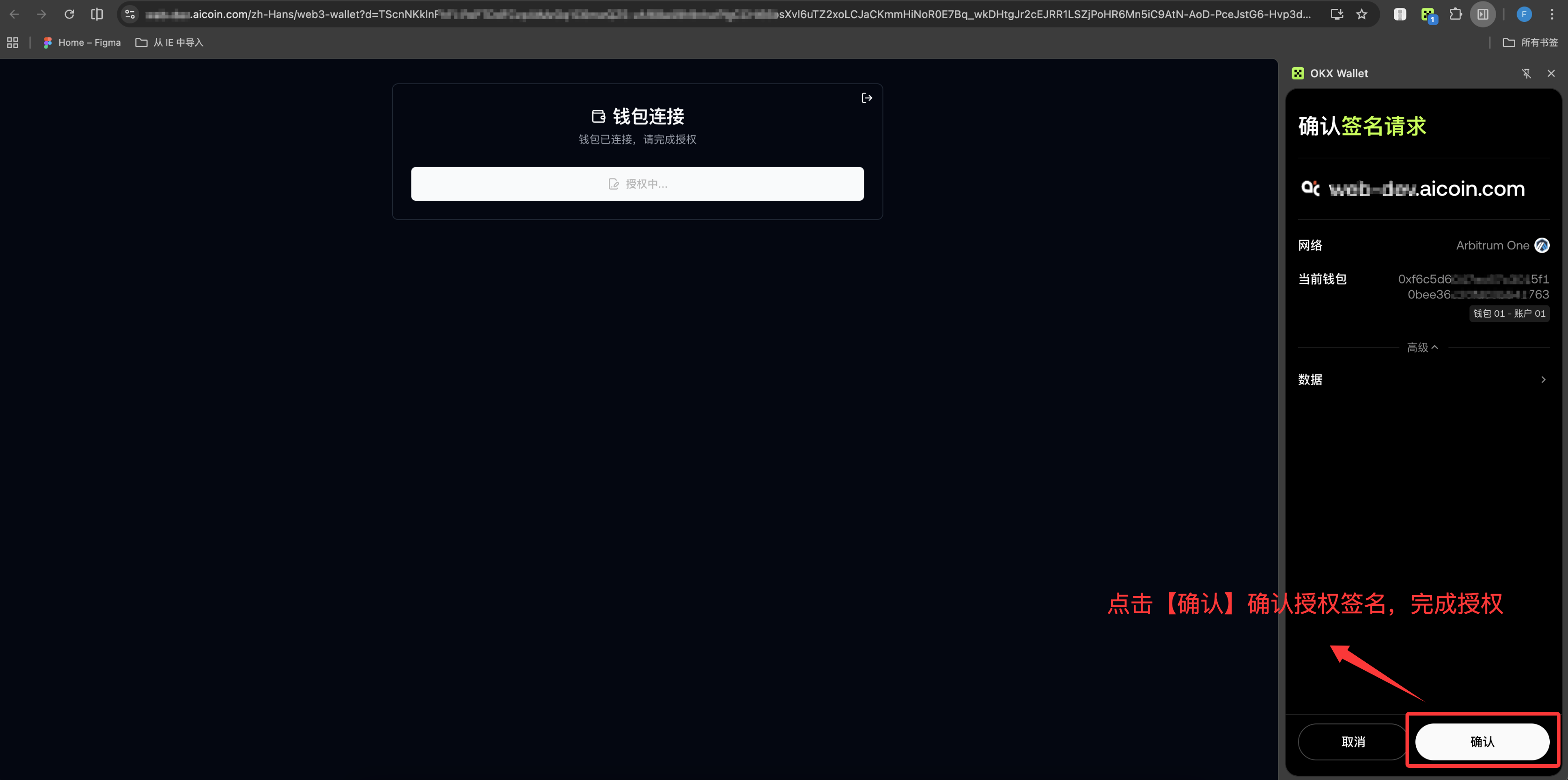
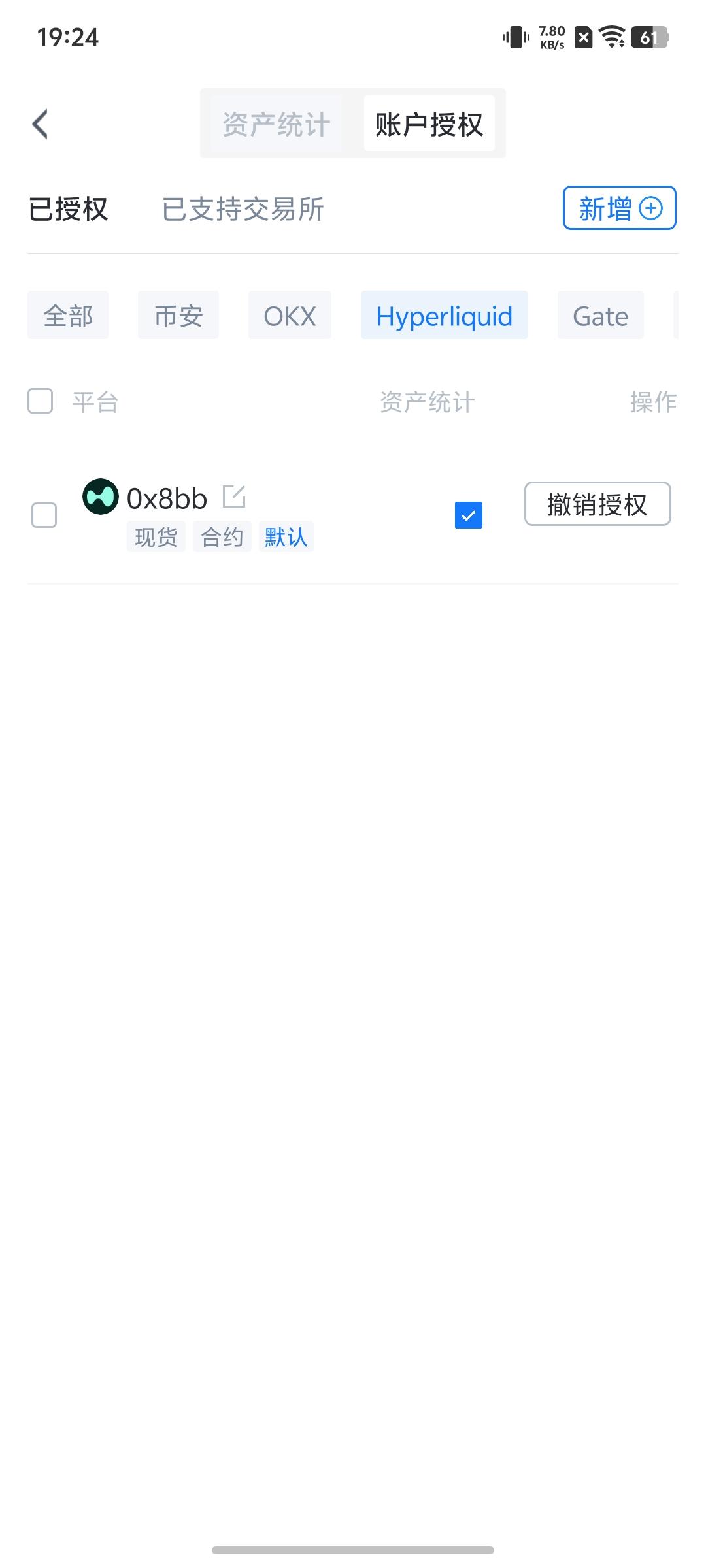
3. After authorization is complete, you can view the Hyperliquid records in the authorized list.
Hyperliquid Authorization Account Exception Problem Solutions
1. Check if the [Hyperliquid] API has expired and reapply for the API to bind.
2. Check if the input Key is correct and try again.
3. Apply for a new API, re-enter and replace it, clear local cache and log in again.
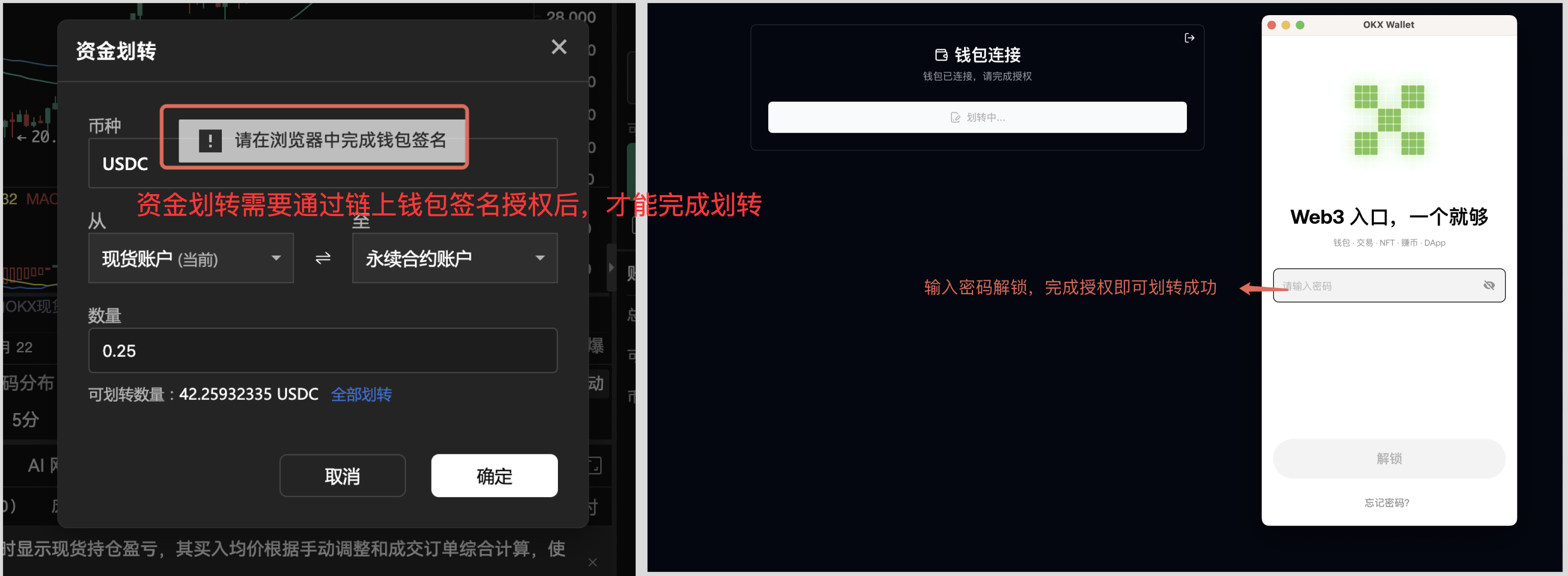
4. Fund transfer process: authorization must be completed through wallet signature to finalize the transfer.
免责声明:本文章仅代表作者个人观点,不代表本平台的立场和观点。本文章仅供信息分享,不构成对任何人的任何投资建议。用户与作者之间的任何争议,与本平台无关。如网页中刊载的文章或图片涉及侵权,请提供相关的权利证明和身份证明发送邮件到support@aicoin.com,本平台相关工作人员将会进行核查。